If you’ve ever tried to use a font with fancy ligatures in Canva and wondered why nothing seems to happen, you’re not imagining things.
Canva has improved a lot when it comes to typography, but discretionary ligatures (and other OpenType features like stylistic sets and swashes) are still one area where it falls short. Understanding what Canva does and does not support can save you a lot of frustration, especially if you’re working with higher-end fonts that include advanced OpenType features.
Here’s the short answer, followed by the details.
The Short Answer
No, Canva does not support discretionary ligatures natively. Canva’s ligature toggle only enables standard ligatures, even if a font includes discretionary ones. To use discretionary ligatures in Canva, they must be inserted manually using a PUA-encoded version of the font.
And the good news is, this manual workaround, depending on the font you’re using, can work quite well.
What Canva Does Support
As of 2025/2026, Canva has added more advanced typography controls than it had in the past.
In the Advanced Text Formatting panel, Canva now includes:
- Kerning, which adjusts spacing between letters automatically
- Ligatures, which enables standard ligature pairs if the font supports them
Kerning is enabled by default in new designs. Ligatures are disabled by default because they currently conflict with text animations.
When you turn ligatures on, Canva will apply standard ligatures such as fi, fl, ff, or tt, as long as the font includes them. For more specific instructions on how to do this in Canva, see this article.
Why Discretionary Ligatures Don’t Work in Canva
Canva does not distinguish between different types of ligatures in its interface. There is a single Ligatures toggle, and as of January 1, 2026, that toggle only activates standard ligatures.
But discretionary ligatures are different. They're coded differently in the font, and a font can include both a standard "fi" ligature, for example, and a discretionary one. Because discretionary ligatures require more advanced OpenType controls, they are not currently supported by Canva’s text engine.
Standard vs Discretionary Ligatures (Quick Explanation)
Standard ligatures are designed to improve spacing and readability. They prevent awkward letter collisions and are subtle enough to be applied automatically without changing the overall feel of the type.
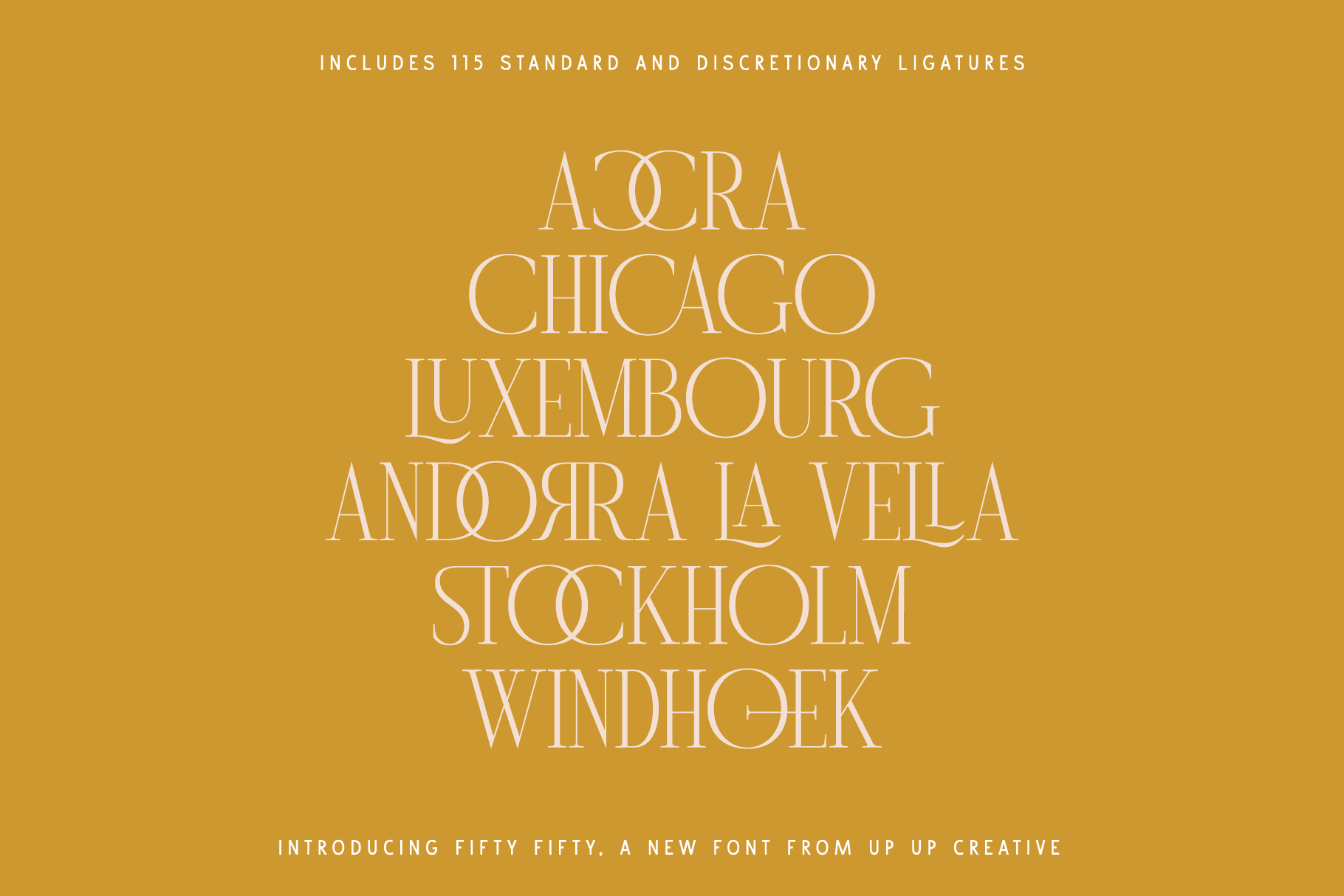
Discretionary ligatures are stylistic choices. They are meant to be used intentionally and sparingly, often in logos, headlines, or display text. These ligatures are not essential for readability, which is why most design software treats them as optional features.
Canva supports the first category, but not the second.
The Workaround: Using Discretionary Ligatures in Canva Anyway
If a font includes discretionary ligatures or other OpenType features, there is still a way to use them in Canva.
The key is PUA-encoded fonts.
When a font includes a PUA (Private Use Area) version, special characters like discretionary ligatures and swashes are assigned to specific Unicode slots. That means they can be copied and pasted manually, even in software that does not support OpenType features directly.
As long as you are using the same font in Canva, those characters will display correctly.
(Not sure what I'm talking about? Read more here. Or if you want to skip that, know that all Up Up Creative fonts include a PUA-encoded version with your download.)
How to Use Discretionary Ligatures in Canva (Manual Method)
- Open Canva and start a new design or open an existing one.
- Select the text box where you want the ligature to appear.
- Open a character map app on your computer and choose the same font you’re using in Canva.
- Locate the discretionary ligature or special character you want.
- Copy the character.
- Paste it directly into your Canva text box.
Most operating systems include a built-in character map, but there are also free and paid third-party options if you want more advanced browsing tools.
When Canva Might Not Be the Right Tool
If your project relies heavily on discretionary ligatures, stylistic sets, or complex OpenType features, Canva may not be the best tool for the job. Professional design software like Illustrator, InDesign, or Affinity Designer gives you full access to these features without workarounds.
That doesn’t mean Canva isn’t useful. It just means it has limits, especially when it comes to expressive typography.
Final Takeaway
Canva supports standard ligatures, but it does not support discretionary ligatures through its built-in typography controls.
If you want to use discretionary ligatures in Canva, your best option is to manually insert them using a PUA-encoded font and a character map. It’s not as seamless as full OpenType support, but it works.
If typography details matter to your project, knowing where Canva draws the line makes it much easier to choose the right tool or the right workaround.